Projection setup
Before you start
99% of projection installations go smoothly but you may welcome help from someone local with a little computer knowledge. See the end of this page for feedback we received from a DryFire user in South Africa.
You must have installed DryFire and used it with laser targets before setting up for projection.
Make sure your projector is working with your PC/laptop before trying to use it with DryFire.
Wordcraft does not supply projectors so you will need to consult your projector’s manual.
Windows 10/11 and Apple Mac can use projectors in one of two ways:
- Duplicate mode: the projector displays the same screen as the one on the PC/laptop.
- Extended mode: the projector displays a separate screen from the one on the PC/laptop.
You can think of this as having two screens connected side by side with your PC/laptop being one of them and the projected image being the other.
You will have seen this in films and on TV where people working in "the financial sector" seem to be surrounded by different screens.
When in extended mode you can move your mouse cursor from one to the other by moving it left or right between the two screens - one cursor, two screens!
Click here for the extended mode procedure for Apple Mac.
Click here for the extended mode procedure for Windows 10/11.
Your PC must be set up to use the projector in extended mode for use with DryFire.
Setting up your projector
Please do this before starting DryFire setup for projection
- Ensure your PC is using the projector in "extended mode" - see above.
- Ensure the projector's aspect ratio is set to "Native" or "Auto" and that any "Image shift" or "Zoom" features are set to zero. (Not all projectors have these features so consult the manual.)
- Ensure the image generated:
- is truly rectangular - a spirit level comes in handy here,
- fits within the boundaries of the screen - nothing off the top, bottom or sides,
- is not distorted - check for keystoning,
- is not cropped in any way - this is critically important.
Do you have the optional DryFire projection add-on?
- DryFire will not work with a projector unless you have installed the optional DryFire Projection add-on.
- Things will not work correctly without the add-on - you will see both laser and projected targets on the projection screen and they will not line up with one another.
- If you purchased your DryFire system with the Projection add-on it will be enabled already.
- If you purchased the Projection add-on separately your invoice will contain a key to enable the function.
With the DryFire software running, select "Settings", "Add ons", enter the key and click on "Apply".
Setting up for use with DryFire
Check again that the projected extended display image is visible and not cropped in any way,
Check again that the projected image fits within the screen area - and does not go beyond it.
- Select "Settings", "Calibration", "Full calibration".
Check critical measurements: "simulator to wall/screen", "simulator from floor" and "shooter from wall".
- Select "Advanced setup" then "Next".
- Select "I'm projecting".
- Carry out the three step alignment procedure as described in the on-screen instructions:
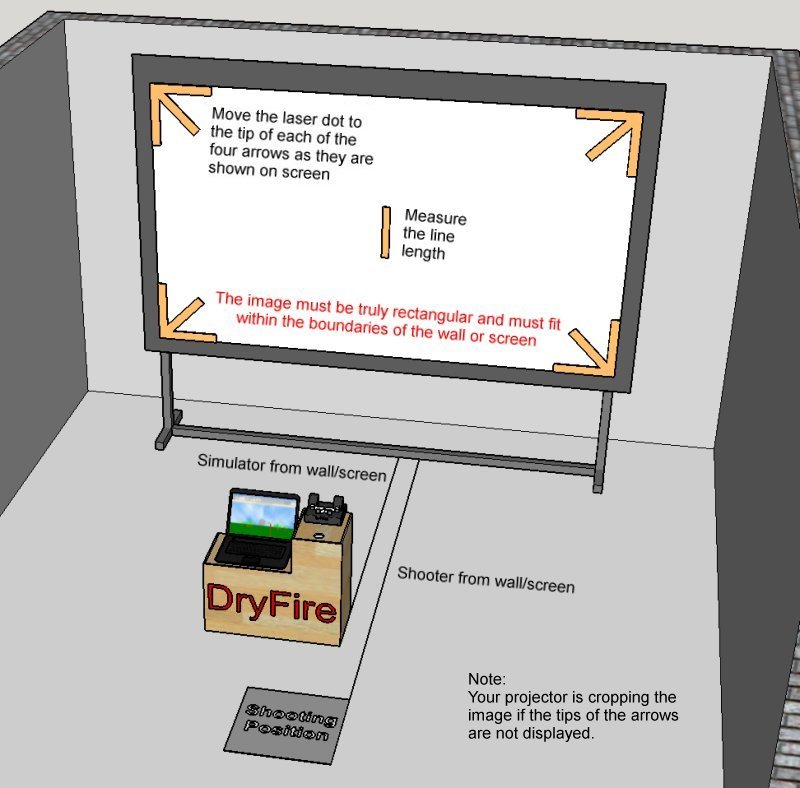
- A red laser dot will appear close to the centre of the screen along with a projected image of a cross-hair cursor. Use your mouse or touchpad to move the projected cursor so its centre is over the dot, then click left.
Note: you will need to move the cursor from your main screen on to the projection screen, which will usually be to the right of your main screen, but may be above, below or to the left.
- Next you will see a vertical white bar projected in the centre of the image. Measure its length in millimetres (mm) and enter the value on the PC screen. The measurement should be accurate to the nearest millimetre.
- The software will project four large arrows pointing to the corners of the projected image - starting with the top left hand corner - and the simulator will display a laser dot close to the tip of each arrow in turn.
Important: see the note below about "Checking for cropping" if you can't see the tips of the arrows on the wall/screen.
If the laser dot is more than 150mm from the tip of the arrow, it suggests that one of the measurements ("simulator from wall/screen", "simulator height", "shooter from wall/screen") is wrong, so restart the calibration process.
- The PC screen will show a pad to control the location of the laser dot using up/down/left/right buttons for you to click on with your mouse or touchpad. Move the laser dot so it is as close as possible to the tip of the arrow then click on "Next".
Important note: the procedure must be followed for each arrow.
- Once this is done you can go through the muzzle alignment process, select targets and start shooting.
Checking for cropping
Follow this procedure if, during projection setup, the tips of the four arrows are not shown on the projection screen.
With the DryFire software running and your projector working, select "Settings", "Support", "Advanced", "More options", "Check projector settings" then "Open check page".
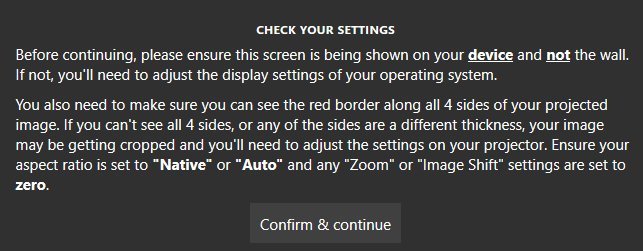
- You are using "duplicated mode" if the PC screen and the projected image are the same. You must use "extended mode". (See above.)
- The image is being cropped if you do not see a red border on all four sides..
Cropping must be corrected before carrying out the DryFire projection setup. Check your projector's manual or speak to your projector supplier..
The Internet has many articles on the general use of projectors - try a browser search for "pc projector cropping and scaling".
Report of a problem with Windows 10 and extended mode
We received the following from a DryFire user in South Africa who was having problems with his projector. Unfortunately Wordcraft cannot help with Windows problems but we are really pleased it got sorted out in the end - and we now have an enthusiastic DryFire user!
It makes a sound point: hands-on help from someone local and with experience can go a long way!
- Resolution was set to 1080 for both screens but the computer was saving the projector and laptop resolutions differently. Windows failed to save settings entered into the extended screen options.
- My computer guy reinstalled Windows and changed some advanced settings which had caused the extended screen to switch back to duplicate screen as soon as I opened any program including DryFire.
- The refresh speed on the laptop was at an odd setting which was causing delays between the projector and the laptop. Now sorted.
- Needless to say, once it was working I shot until I couldn't lift the gun any more!
- I am so impressed with this system I hope it never breaks as I now using it every day.
- More importantly, I am going blind in my right eye which was dominant. Within 4 days I have taught myself to shoot left-handed with 90 percent scores on most trap setups.