Screen layout and normal use
Screen layout
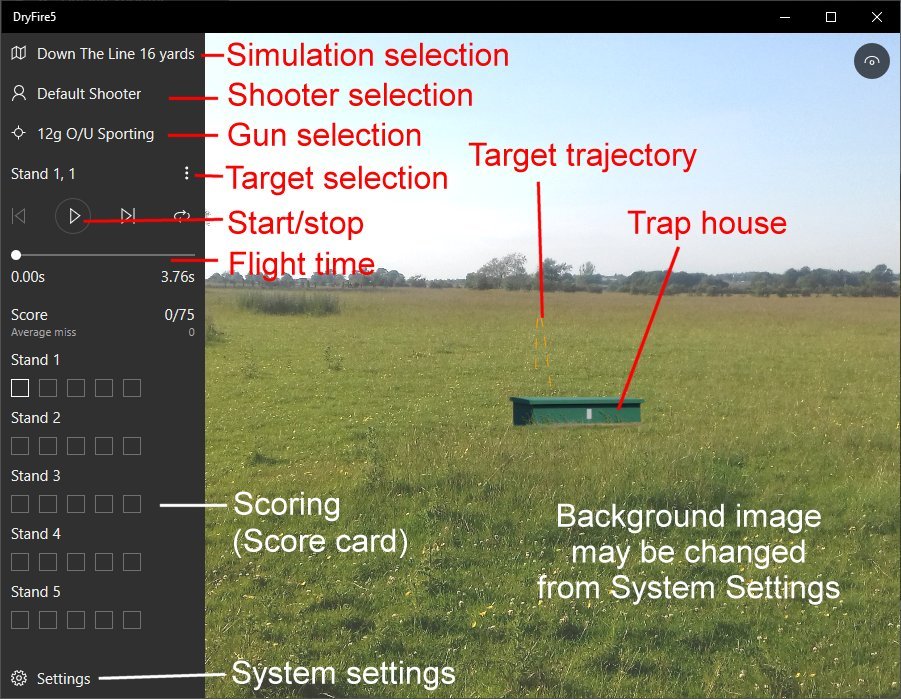
To the left of the screen is a vertical banner and to the right is the simulation display.
On some screens, next to certain options, you will see a pale circle with the letter "i" inside - click this for helpful information.
In the case below "Down The Line" (DTL) simulation has been selected and the system is ready to display the first target.
Simulations
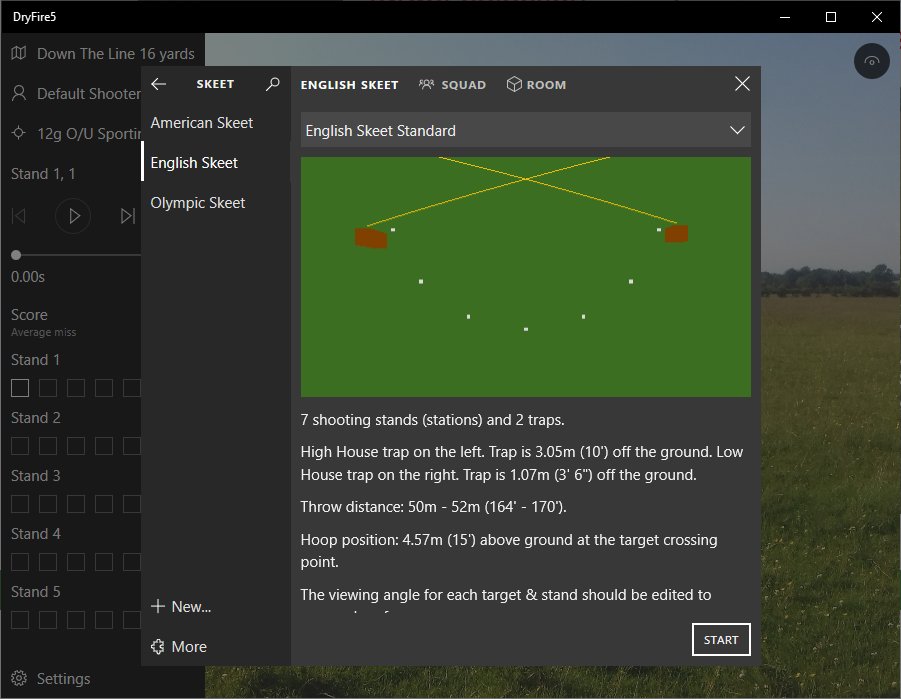
Clicking in the simulation selection area displays a list of simulation types: Trap, Skeet, Sporting, Game and All.
Clicking on a type displays the simulations available in that type. For example, within the Skeet type it displays American Skeet, English Skeet and Olympic Skeet. Clicking on a simulation brings up more details and the Start button selects it.
An example of normal use
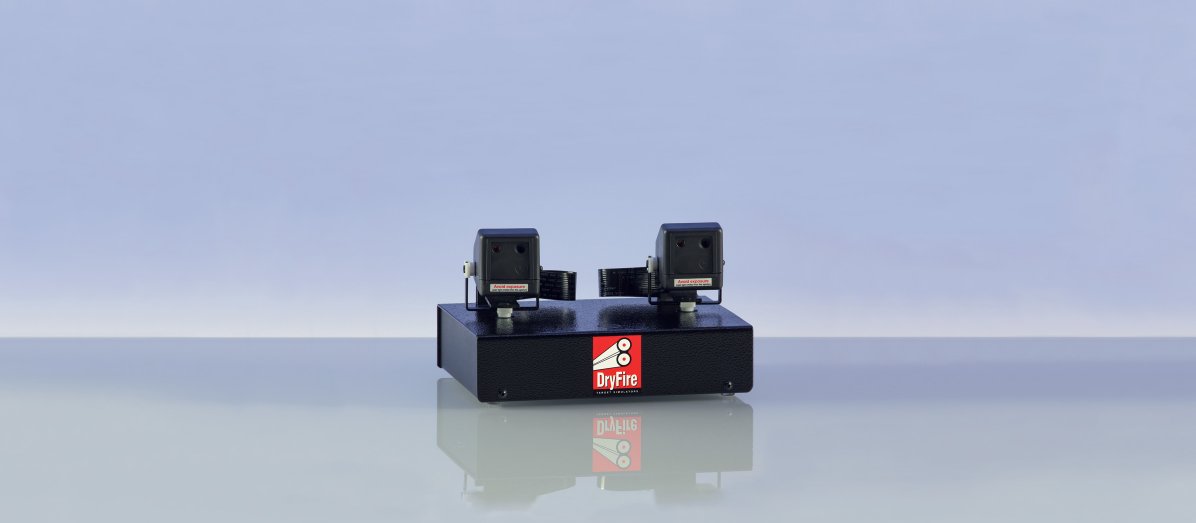
- After installation and calibration make sure the UGA is fitted to your gun and switched on.
- Select DTL. By default, the system will work through a complete round so target one will be displayed.
- Leave everything else untouched - default shooter and default gun.
- Click on the triangular Start/stop button. You will hear a beep and the button will change to a green microphone.
- View the target trajectory by calling "Pull" - make a mental note of where the target starts.
- Take up your pre-mounted shooting position, point your gun at your hold position and call "Pull".
- Swing, allow for lead, press the trigger, follow through and lower the gun.
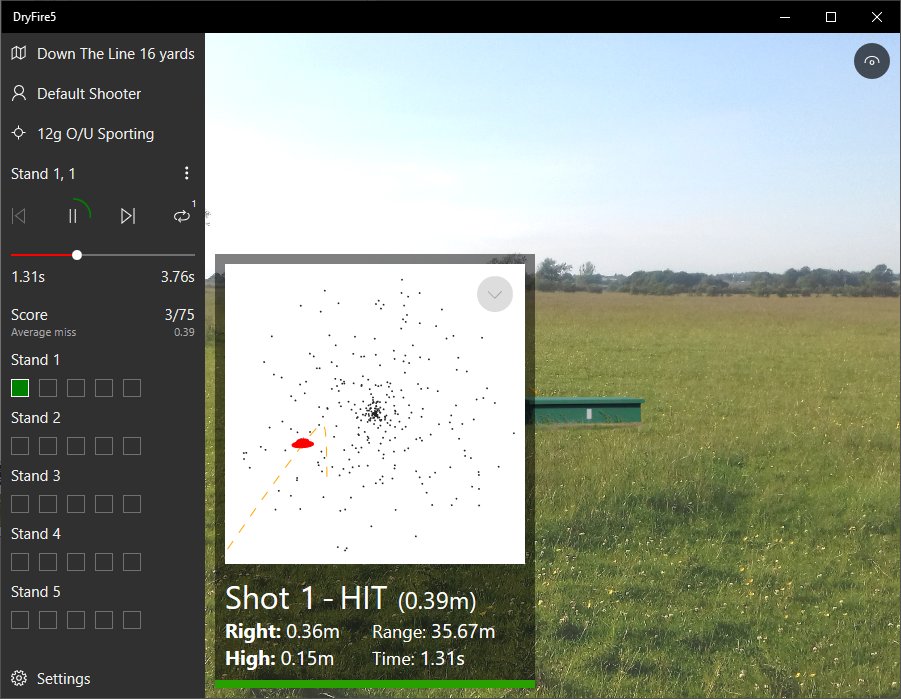
- You should hear a "Bang" and the result of your shot will be displayed - as shown below.
The centre of the shot pattern was 0.39m from the clay at it's closest point - it was right and slightly high.
The shot was taken when the clay was 35.67m from the shooter who fired 1.31 seconds after the clay was released.
Note: the scoring area shows a green square for Stand 1, Target 1 indicating a hit - it would show red for a miss.